Our Premium Mailbox add-on comes with inbuilt Calendar functionality using CalDAV – you can synchronise these with your iOS devices to have your Calendar functionality with you wherever you go. In order to set this up once you have purchased the add-on:
- Sign into your Premium Mailbox via Premium Webmail.
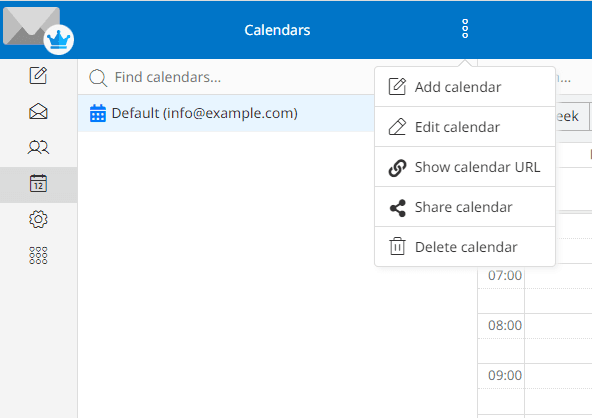
- You should see a Calendar button on the left panel. Select this to navigate to the Calendars area.
- Next to Calendars at the top there is a button consisting of three dots – select this, and then Show Calendar URL
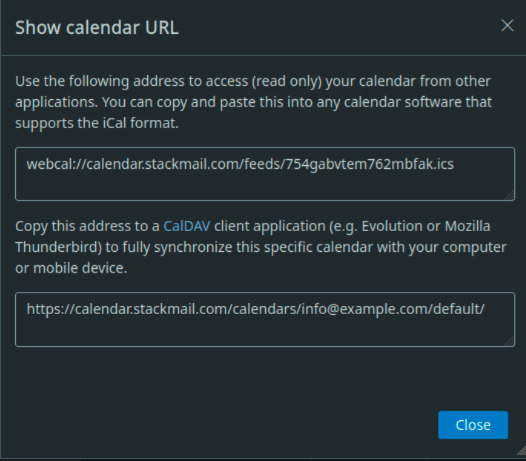
- You’ll see a display with two addresses – the bottom box contains the URL to your calendar – make a note of this.
Once you have the details you need, you should then open the Apple Mail client on your iOS device, and do the following:
- Select Settings → Calendar → Accounts.
- Under ACCOUNTS, select Add Account → Other.
- Under CALENDARS, tap Add CalDAV Account to add a calendar account.
- You’ll then be presented with areas to enter your details – these are as follows:
- Server: The URL you noted from your profile.
- Username: Your email account.
- Password: Your mailbox’s password.
- Description: A name for your account ie. My Calendar.
- Select Save at the top. This should set up your calendar on your iOS device.